
Foto naar afbeelding
Referentieafbeelding
Foto naar afbeelding met AI: een nieuwe richting voor je foto
Begin met een referentiefoto en beschrijf wat er komt. Verander de stijl, de omgeving of de sfeer met PixJelly Foto naar afbeelding.
Van referentie naar een frisse interpretatie
- 1
Voeg een referentie toe
Upload een foto, sleep hem naar de werkruimte of plak hem vanaf je klembord. PNG-, JPEG- en WebP-bestanden tot 25 MB worden geaccepteerd, en de werkruimte maakt een werkkopie van maximaal 1.800 pixels aan de lange zijde voordat er iets wordt verstuurd.
- 2
Beschrijf je richting
Vertel wat er moet veranderen en wat moet blijven. Kies PixJelly V2.0 of een van de externe beeldmodellen en stel daarna de vorm van de uitvoer in op het kader dat je echt nodig hebt.
- 3
Maken en opslaan
Het verzoek draait op de servers van de provider terwijl de werkruimte de taak volgt. Bekijk de nieuwe afbeelding naast je referentie en download haar voor je volgende project, of schrijf een andere richting en probeer het opnieuw.
Jouw compositie, een andere sfeer
Gebruik een foto als vertrekpunt voor een nieuwe visuele richting. Beschrijf een ander materiaal, ander licht of een andere kunststijl en houd de elementen die voor jou belangrijk zijn. Benoemen wat moet blijven is net zo belangrijk als benoemen wat moet veranderen, want elke pixel in het beeld wordt hoe dan ook opnieuw getekend.
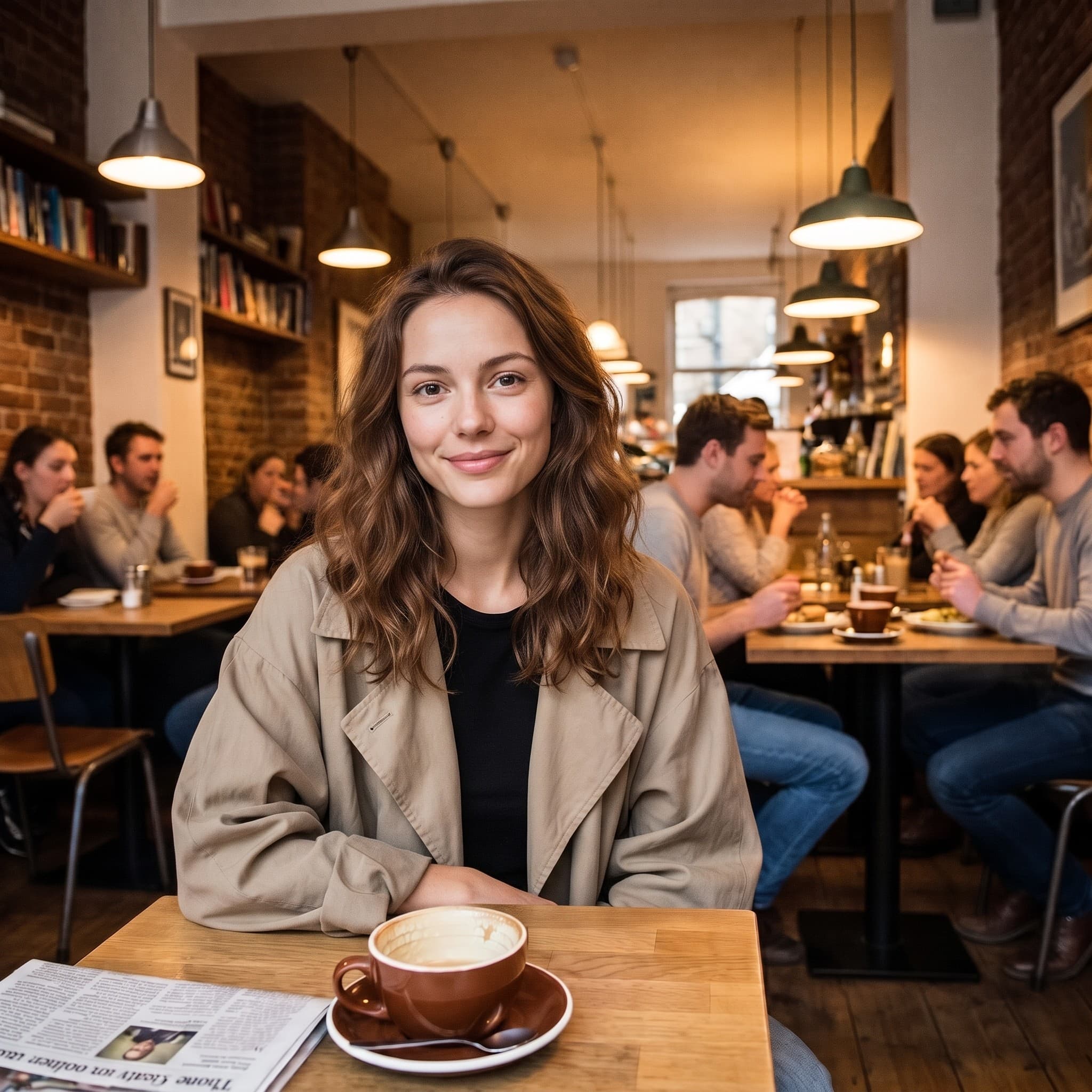
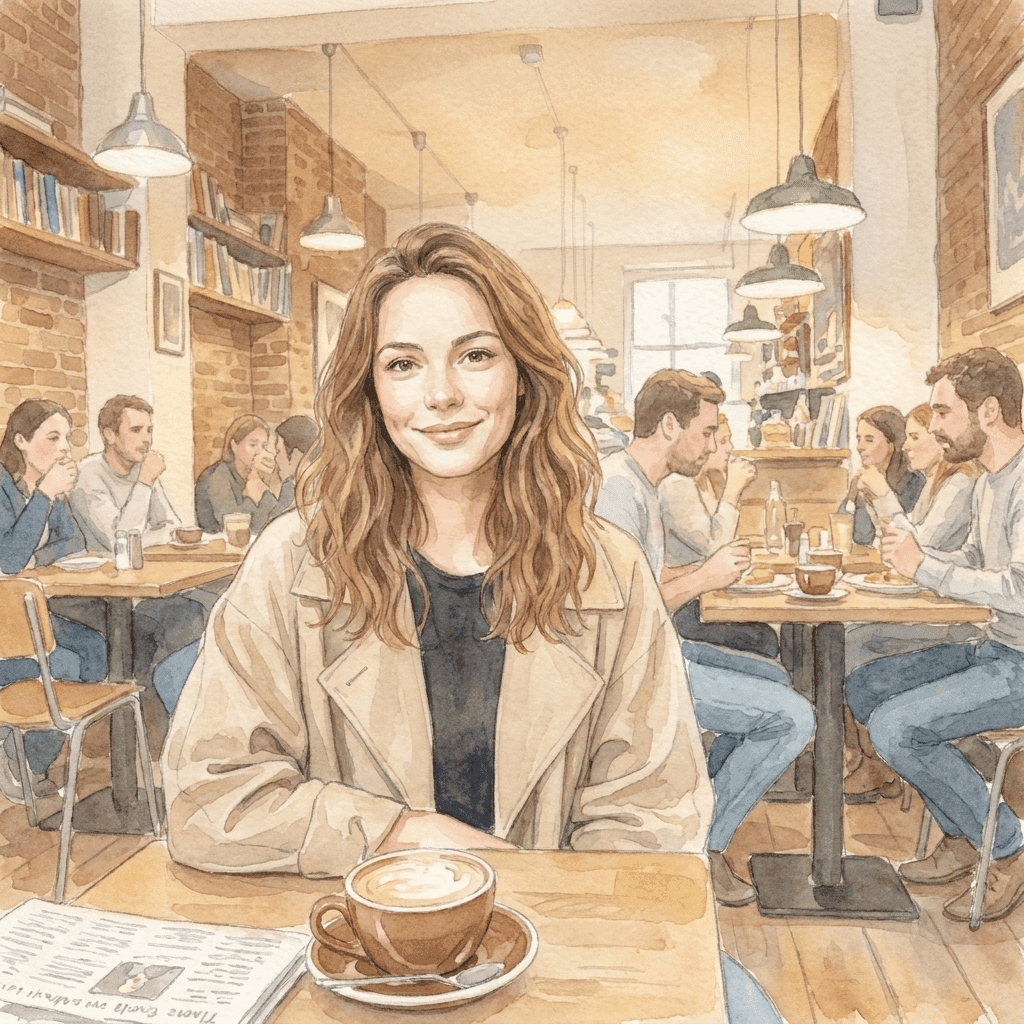
Van foto naar een zachtere wereld
Deze aquarelillustratie is met een korte stijlinstructie gegenereerd uit de referentiefoto. Neem je eigen visuele richting mee en ontdek wat je beeld kan worden. De houding, de kadrering en de manier waarop het licht valt in het origineel maken de illustratie herkenbaar; de instructie hoefde alleen het medium aan te leveren.
Een overzichtelijke werkruimte voor foto naar afbeelding
Jij brengt de referentie. Jij kiest de richting.
Eén referentie, veel ideeën
Verken een nieuwe omgeving, een ander medium of een andere visuele stijl vanuit één bestaande afbeelding. Je bestand wordt nooit overschreven, dus je kunt dezelfde referentie altijd opnieuw gebruiken met een andere richting als het eerste antwoord niet het juiste is.
Kies je model
Gebruik PixJelly V2.0 of een van de beschikbare externe beeldmodellen. Elk model leest dezelfde referentie en dezelfde instructie anders, dus een richting die bij het ene niet werkt, is vaak het proberen waard bij een ander.
Klaar om te downloaden
Sla je resultaat direct op vanuit de werkruimte, zonder watermerkstap en zonder apart exportscherm daartussen.
Formaten die bij het kader passen
Stel de uitvoer in op 1:1, 3:4, 4:3, 16:9 of 9:16. Het resultaat wordt gegenereerd in de verhouding die je kiest, en niet achteraf bijgesneden.
Ruimte om het uit te leggen
Het promptvak accepteert tot 5.000 tekens, genoeg om de wijziging, de dingen die moeten blijven en de sfeer die je zoekt in één keer te beschrijven.
Niets te installeren
Foto naar afbeelding met AI draait in de browser die je al hebt. Geen plug-in en geen desktopapplicatie. Log in met Google om te genereren; bij je eerste keer inloggen krijg je 10 gratis credits.
Wat er verder in de werkruimte zit
Een foto omzetten is één klus. Dit zijn de andere.
Tekst naar afbeelding
Geen referentie bij de hand? Schrijf een prompt en genereer een afbeelding uit alleen woorden.
Markeren & bewerken
Houd de foto zoals hij is en verander één deel ervan. Teken een pijl naar de plek en schrijf de instructie erbij.
Achtergrond verwijderen
Knip het onderwerp uit als transparante PNG. Die tool draait op je eigen apparaat in plaats van op een server.
Ga verder met je beeldworkflow
Waar foto naar afbeelding met AI past
Creatieve richting
- Neem een foto die je al mooi vindt en bekijk hem als aquarel, inkttekening of geschilderde illustratie.
- Probeer een andere lichtbehandeling over het hele beeld zonder terug te gaan naar de shoot.
- Breng een reeks losse referenties onder in één beeldtaal, zodat een presentatie leest als één idee.
Productbeelden
- Beschrijf een nieuw decor voor een productfoto als de oorspronkelijke omgeving niet meer bij de campagne past.
- Verken een andere sfeer, warmer, kouder of redactioneler, voordat je de fotografie boekt die het echt maakt.
- Laat iemand zien hoe een behandeling eruit zou zien, in plaats van het in een alinea te beschrijven en te hopen dat het overkomt.
Stijlen verkennen
- Haal dezelfde referentie door twee modellen en vergelijk welk model de richting begreep die je schreef.
- Verander telkens één zinsdeel en kijk wat er beweegt. Zo leer je het snelst waar een model echt naar luistert.
- Houd de compositie waar je al tijd in hebt gestoken en behandel al het andere in het beeld als variabele.
Persoonlijke foto's
- Maak van een portret een illustratie voor een kaart, een profielfoto of iets wat het printen waard is.
- Verbeeld een vakantiefoto opnieuw in een seizoen waarin hij niet is genomen.
- Geef een oud kiekje een behandeling die past bij de muur waaraan je het wilt hangen.
Wat is foto naar afbeelding met AI?
Een foto en een geschreven richting gaan samen naar binnen. Het past bij iedereen met een foto die bijna goed is, maar niet in stijl, omgeving of sfeer. Vier dingen bepalen wat er terugkomt.
Je referentie
Eén PNG, JPEG of WebP tot 25 MB. De werkruimte maakt een werkkopie van maximaal 1.800 pixels aan de lange zijde en stuurt die kopie naar het model, dus een veel groter bestand levert je hier niets op. Wat de referentie wél meebrengt, is alles wat een alinea moeilijk kan beschrijven: de houding, de ruimte tussen dingen, de manier waarop het licht valt.
Je richting
Schrijf wat er moet veranderen en wat moet blijven. Benoemen wat het bewaren waard is (een houding, een lay-out, de vorm van een product) is meestal belangrijker dan beschrijven wat al zichtbaar is in het beeld. Het promptvak bevat tot 5.000 tekens, dus je hoeft de briefing niet in te dikken.
Je model
PixJelly V2.0 is onze samengestelde workflow, die op dit moment draait op Nano Banana Pro. Nano Banana 2.1, GPT Image 2 en Seedream 5 Pro zijn ook beschikbaar, en elk model leest dezelfde referentie anders. Eén briefing op twee modellen proberen kost weinig en leert je veel.
Je resultaat
De uitvoer is een nieuw gegenereerde afbeelding in de verhouding die je koos, geen bewerking bovenop je bestand. Je referentie blijft onaangeroerd, en het resultaatpaneel bevat één afbeelding tegelijk, dus download wat je wilt houden voor de volgende run.
Een nieuwe afbeelding, geen geretoucheerde
Foto naar afbeelding met AI genereert het hele beeld opnieuw. Alles in het resultaat is door het model getekend, ook de delen die onaangeroerd lijken, dus letters, handen, logo's en kleine objecten op de achtergrond kunnen veranderd terugkomen. Vergelijk het resultaat met je referentie voordat je het ergens gebruikt.
Die afweging bepaalt welke tool past. Een transformatie van foto naar afbeelding met AI is de juiste keuze als stijl, omgeving en sfeer samen moeten verschuiven. Is één gebied fout en de rest van de foto al goed, dan behoud je veel meer van je uitgangspunt door dat gebied aan te wijzen en de wijziging te beschrijven. Wil je alleen het onderwerp loskrijgen van de achtergrond, dan laat een uitsnede op je eigen apparaat de originele pixels helemaal met rust.
Beginnen vanuit een foto in plaats van een zin is de moeite waard om precies de reden waarom het riskant is. De referentie geeft het model informatie die geen alinea kan overbrengen, maar ook de delen waar je niet aan dacht. Kies dus een referentie die echt dicht bij de compositie zit die je wilt, en beoordeel het resultaat op verschuivingen en niet alleen op stijl.
Vragen over foto naar afbeelding met AI
Heb ik een referentiebeeld nodig?
Ja. Deze tool begint vanuit één geüploade afbeelding. Heb je niets om mee te beginnen, genereer dan eerst een beeld vanuit een geschreven prompt en gebruik dat hier als referentie.
Blijft elk oorspronkelijk detail hetzelfde?
Nee. Het hele beeld wordt opnieuw gegenereerd, dus tekst, handen, logo's en kleine objecten op de achtergrond kunnen veranderd terugkomen. Bekijk het resultaat voordat je het gebruikt, en overweeg een gerichte lokale bewerking als maar één gebied fout is.
Wordt dit op mijn apparaat verwerkt?
Nee. Je referentie en je prompt worden naar de gekozen beeldprovider gestuurd, en de nieuwe afbeelding wordt op diens servers gegenereerd.
Hoe groot moet mijn referentie zijn?
Elke PNG, JPEG of WebP tot 25 MB. De werkruimte genereert vanuit een kopie van maximaal 1.800 pixels aan de lange zijde, dus een heel groot origineel voegt geen detail toe aan het resultaat.
Hoe specifiek moet de instructie zijn?
Specifiek over de wijziging, en specifiek over wat die moet overleven. Een houding, een lay-out of een productvorm noemen die je wilt houden, is meestal nuttiger dan beschrijven wat al duidelijk zichtbaar is op de foto.
Welke beeldverhouding krijgt het resultaat?
Die je vóór het genereren kiest: 1:1, 3:4, 4:3, 16:9 of 9:16. De uitvoer wordt in die vorm gegenereerd en niet bijgesneden, dus kies de verhouding die past bij waar het beeld naartoe gaat.
Wordt mijn originele bestand aangepast?
Nee. Het resultaat is een aparte, nieuw gegenereerde afbeelding. Je referentie blijft precies zoals je haar toevoegde, en het resultaatpaneel bevat één afbeelding tegelijk, dus download wat de moeite waard is voordat je opnieuw genereert.
Heb ik een account nodig?
Een referentie toevoegen en een richting schrijven kan zonder account. Voor het genereren moet je inloggen met Google, omdat het verzoek op de servers van een beeldprovider draait. Bij je eerste keer inloggen krijg je 10 gratis credits, genoeg voor twee afbeeldingen met het goedkoopste model.