
White Background
White background for photos, made on your device
Add a photo, click once, and get your subject on a clean white background. PixJelly separates the subject in your browser and fills the rest with pure white or any color you pick. It is free, needs no account, and your photo never leaves your device.
How to make a background white in three steps
- 1
Add your photo
Drop a PNG, JPEG or WebP into the workspace, choose a file or paste from your clipboard. Clear product shots and portraits give the cleanest results; files up to 25 MB are accepted and the working copy keeps up to 4096 pixels on the long edge.
- 2
Make the background white
Click the button once. Your browser cuts out the subject twice — a full-subject version and a portrait version — and places both on pure white (#FFFFFF). Pick off-white, light gray, black or any hex color and the result updates instantly, without running the cutout again.
- 3
Download the JPG
Compare both versions with the original, then download the one you prefer as a full-size JPG. There is no watermark, no credit meter and no export screen in between.
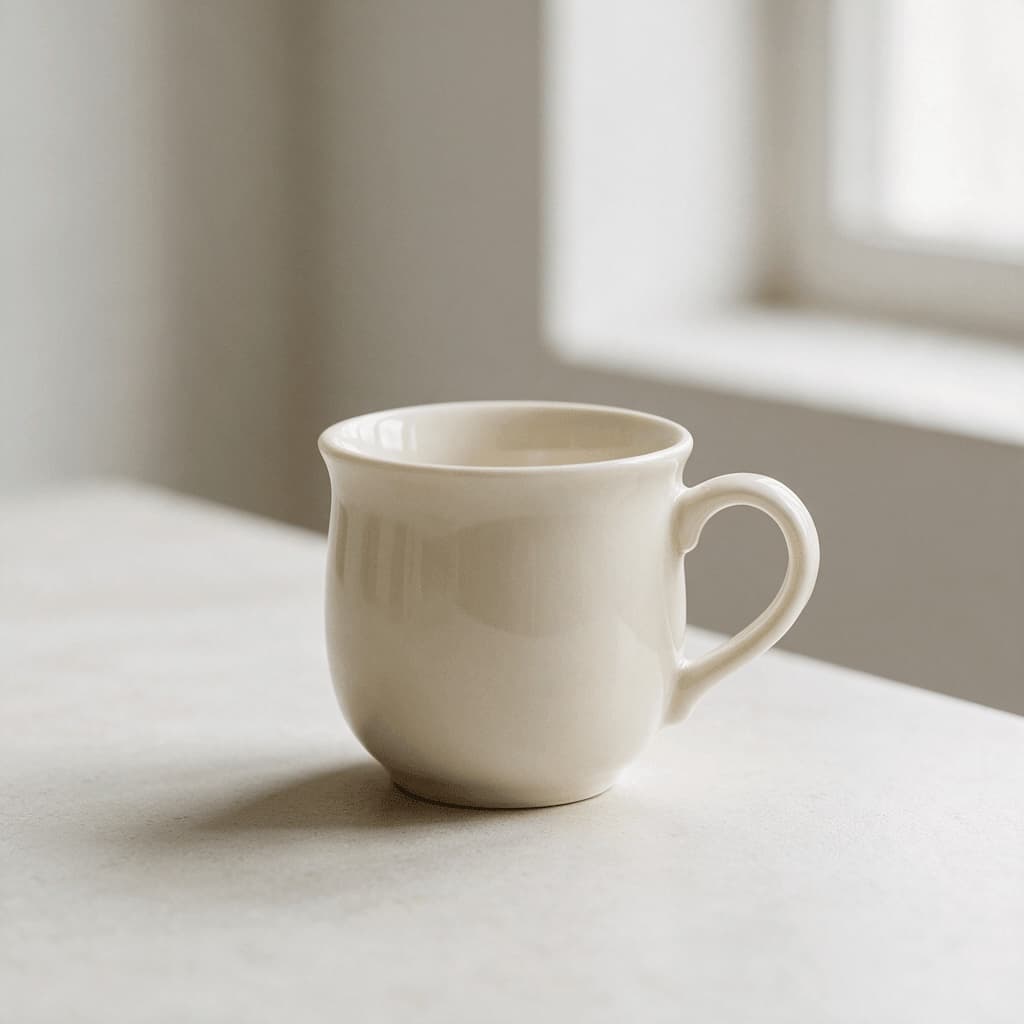
A product photo, as it was taken
A cream mug on a pale table by a window: a deliberately hard case, because the product and the background are almost the same color. This is the kind of shot that sends most people to a photo editor and a lasso tool.
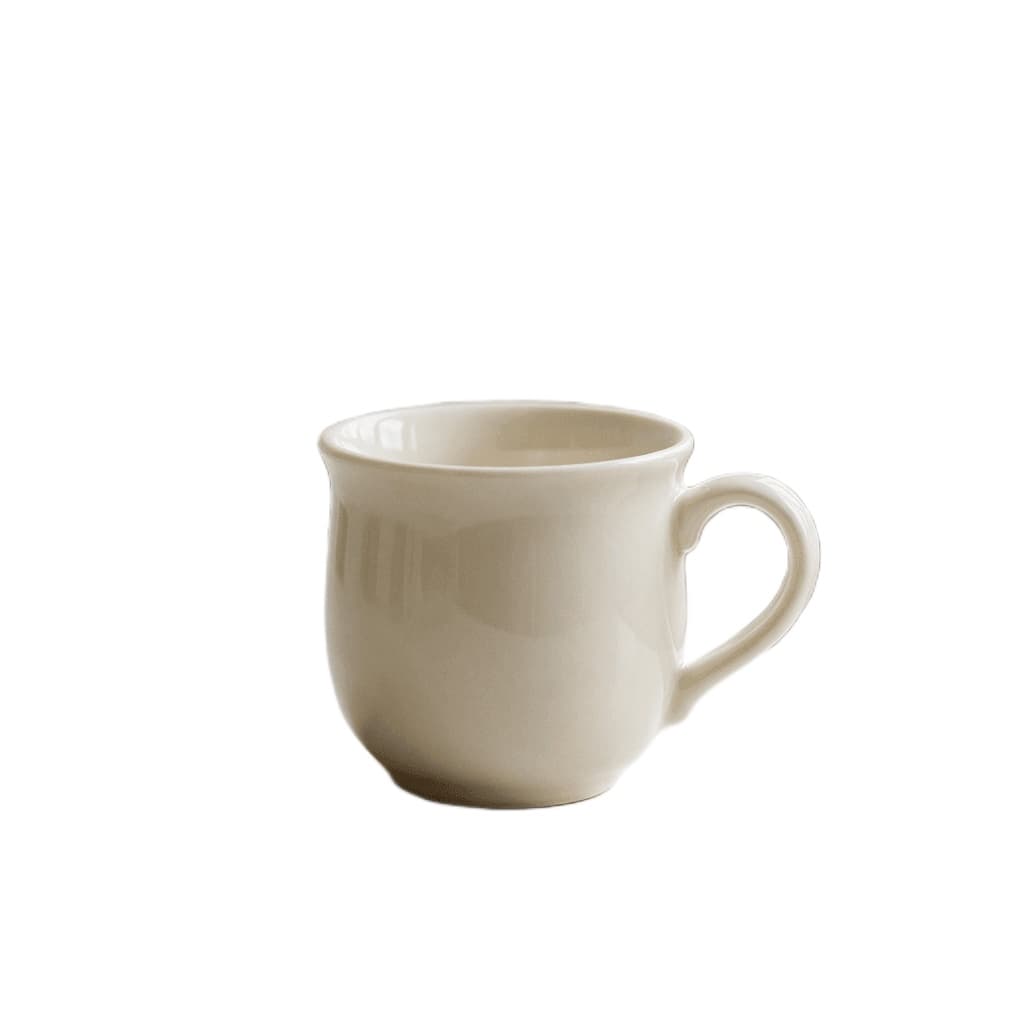
The same photo on a pure white background
This is the unedited full-subject result from the workspace above, on #FFFFFF. Even the gap inside the handle came out white. Check the rim and the foot at full size anyway: low-contrast edges are where any automatic cutout is least certain.
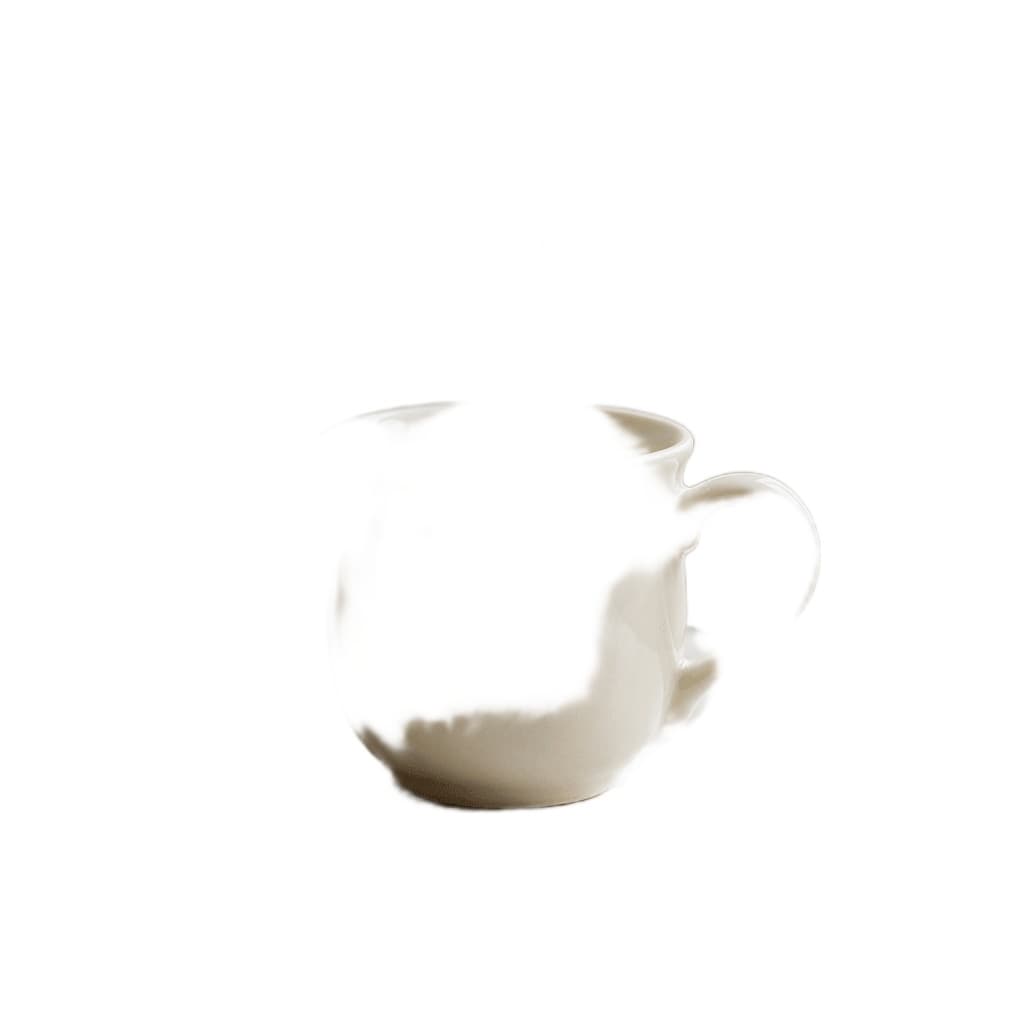
Why there are two versions — and when to ignore one
This is the portrait version of the very same run. It is built to find people, so on a product it erased most of the mug. That is why the workspace always shows both results side by side: for products and objects, keep the full-subject version; for people, compare both around hair and shoulders.
Why make your background white here
A white background photo maker with nothing between your picture and the download.
Free, with no limit
The work happens on your own hardware, so there is no per-image server cost to pass on. No credits, no daily cap and no paid HD download.
No sign-up
Open the page and start. There is no account to create, and nothing about this tool changes if you sign in elsewhere on the site.
No upload
Your photo stays in the browser tab. The first visit downloads the model files to your device; your image never travels the other way.
Pure white or any color
Pure white (#FFFFFF) is the default, because that is what marketplaces mean by a white background. Off-white, light gray, black and custom hex colors are one click away.
Standard and HD when you need them
For glassware, fine hair or group photos, switch to the Standard or HD tier (1 or 4 credits, Google sign-in). The photo is processed on our servers and comes back on the same white background, ready to download.
Full-size JPG, no watermark
The download keeps the working image size, up to 4096 px on the long edge. Smaller photos are not upscaled, so start from your best original.
Continue your image workflow
Where a white background photo earns its place
White background product photos
- Prepare white background product photos for a marketplace listing or your own store, where every item should sit on the same white.
- Reshoot nothing: a product photographed on a kitchen counter can still end up on clean white.
- Keep a consistent catalog look by using the same pure white for every image.
Profile and ID-style photos
- Put a portrait on a plain white or light gray background for a team page, a résumé or a speaker card.
- Use the portrait version for hair and shoulders, which is what it was made for.
- Check official photo rules separately — size, head position and lighting still matter beyond the background.
Social posts and thumbnails
- Make the background white for a clean, minimal post, or pick your brand color instead.
- Turn a cluttered snapshot into a subject that reads clearly at thumbnail size.
- Try several colors on the same cutout without processing the photo again.
Slides, flyers and documents
- Drop a photo with a white background into a white slide or page so it blends in without a visible box.
- Use black or a dark color for presentations with a dark theme.
- Download a JPG that any editor, office suite or website builder can open.
How the white background is made
Four things worth knowing before you rely on it.
Cutout first, then white
The subject is separated from its background by the same on-device model as our free background remover. The empty area is then filled with your chosen color. Nothing in the subject is redrawn or retouched.
One-time preparation
On first use your browser downloads about 113 MiB of model files. It usually caches them, so later visits start much faster, although the browser may clear that cache at any time.
What your device needs
WebGPU is required. A current Chrome or Edge with hardware acceleration enabled is the dependable combination; some devices can run only one of the two versions, and the page will say so.
Transparent instead?
If you need a transparent PNG rather than a white background, use Remove Background. Looking for a ready-made pure white bg image to download? That is a different job — this tool puts your own photo on white.
White background tools compared
What you get for free when you need a photo with a white background.
| Tool | Free use | Sign-up required | Photo uploaded | Max free resolution | Watermark (free) |
|---|---|---|---|---|---|
| PixJelly (free tier) | Unlimited | No | No — processed on your device | Up to 4096 px (long edge) | No |
| Photoroom | 25 exports a week, 100 a month | Yes | Yes (online service) | 2000 × 2000 px (web app) | No |
| Pixian.AI | Limited, number not stated | No | Yes (server GPUs) | 0.25 MP | Not stated |
| remove.bg | Unlimited previews + 1 HD credit | Not stated | Yes (deleted after about an hour) | 0.25 MP preview | Not stated |
| Adobe Express | Not stated | Yes (Adobe account) | Yes (online service) | Not stated; 4K export is paid | Not stated |
Paid server tools such as Photoroom handle see-through and very fine-detailed subjects better than an on-device cutout; what PixJelly offers is free, unlimited and private. Checked against each vendor’s official pricing and help pages on October 23, 2026. Plans change often — check the vendor’s site before you rely on a number. remove.bg has announced that its standalone site closes on December 1, 2026, with background removal moving into Canva.
White background for photos: common questions
Is it free to make a photo background white?
Yes, on the free tier. It runs on your own device, so there are no credits, no daily limit and no watermark, and the full-size JPG download is free. The optional Standard and HD tiers run on our servers and cost 1 and 4 credits per photo.
Do I need to sign up?
Not for the free tier: add a photo, make the background white and download the result without an account. Standard and HD need a Google sign-in, and a new account comes with 10 free credits.
Is my photo uploaded?
Not on the free tier — the cutout and the white fill both happen in your browser, and only the model files are downloaded to your device. If you choose Standard or HD, the photo is sent to our servers to remove the background; the white fill is still added in your browser.
Is the background pure white (#FFFFFF)?
Yes. The default fill is exactly #FFFFFF, which is what marketplaces usually ask for in white background product photos. You can also choose off-white, light gray, black or any hex color.
Will the rest of my photo change?
No. Only the background is replaced. The subject keeps its original pixels; soft edges such as hair are blended with the new color rather than redrawn.
Which photos does it struggle with?
See-through and very fine detail are the hard cases for the free on-device cutout: glassware, transparent umbrellas, dandelions, bicycle spokes, group photos, trees against the sky and motion blur. On some of these the result can come back with holes or empty. For those photos, switch to Standard or HD — they process the photo on our servers and handle fine detail and transparent objects much better, with HD the strongest of the three.
What is the maximum resolution?
Up to 4096 pixels on the long edge. The result keeps the size of your working image and is not upscaled.