
Remove people
Remove people from photos online
Brush over a person — a tourist, a stranger in the background, an ex — and remove them from your photo. Only the area you brush changes. Quick erase is free on your device; AI redraw handles people in busy scenes, with 2 free tries a day and no sign-up.
How to remove people in three steps
- 1
Add your photo
Drop a PNG, JPEG or WebP into the workspace, choose a file or paste from your clipboard. The working copy keeps up to 2048 pixels on the long edge.
- 2
Brush over the people
Paint over the people you want gone. Cover the whole thing, including shadows and reflections; a little extra around the edge is better than too little. Undo and Clear are right under the photo.
- 3
Choose how to remove it
Quick erase runs on your device for free, without limits. AI redraw rebuilds the area on our servers and handles people and busy backgrounds better. Either way, only the area you brushed changes. Compare before and after, then download a PNG.
A café portrait with a stranger at the edge
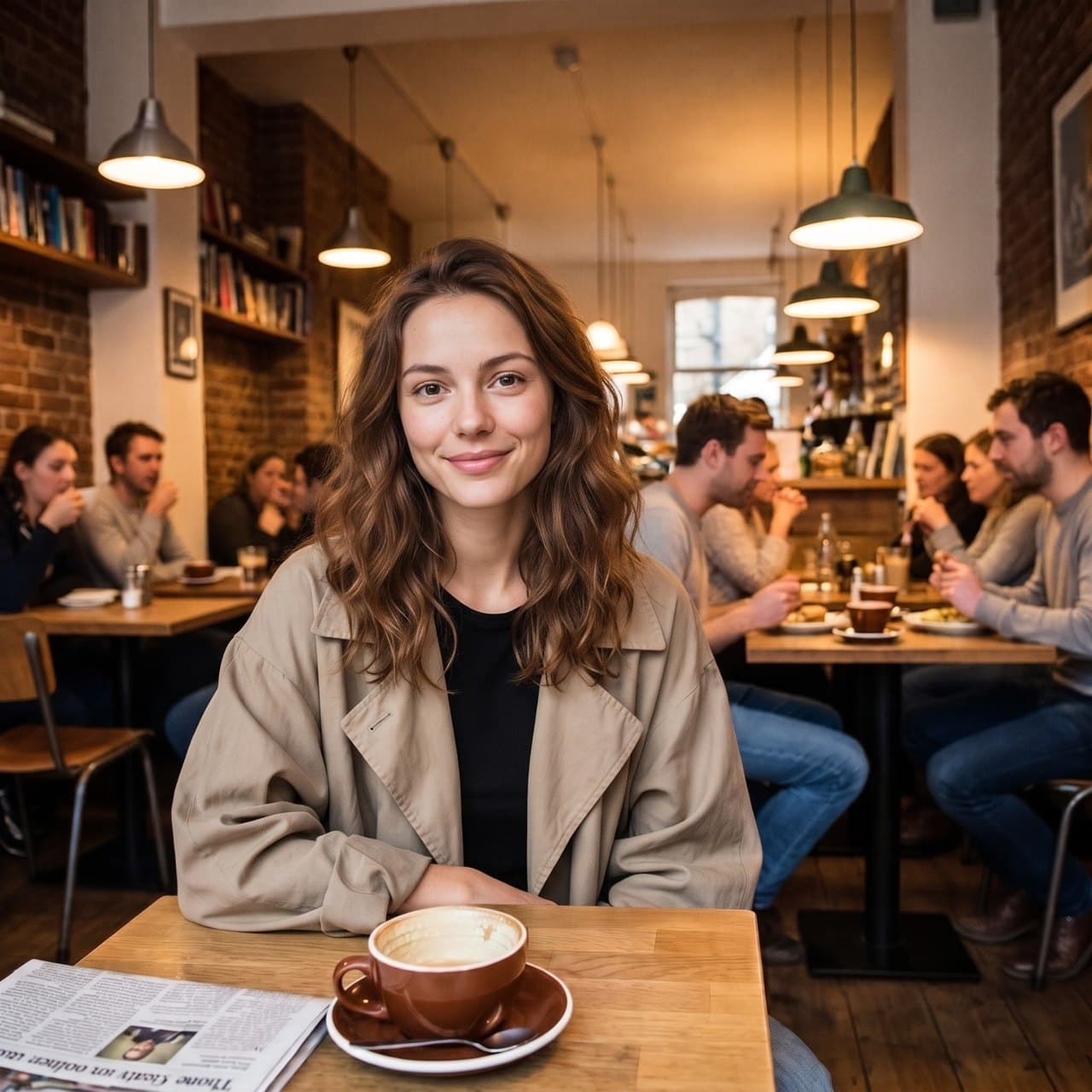
The man at the right edge pulls the eye away from the subject. He is a large shape against a busy background — tables, people and lamps behind him — which is the hardest kind of removal.
The same photo with the man removed
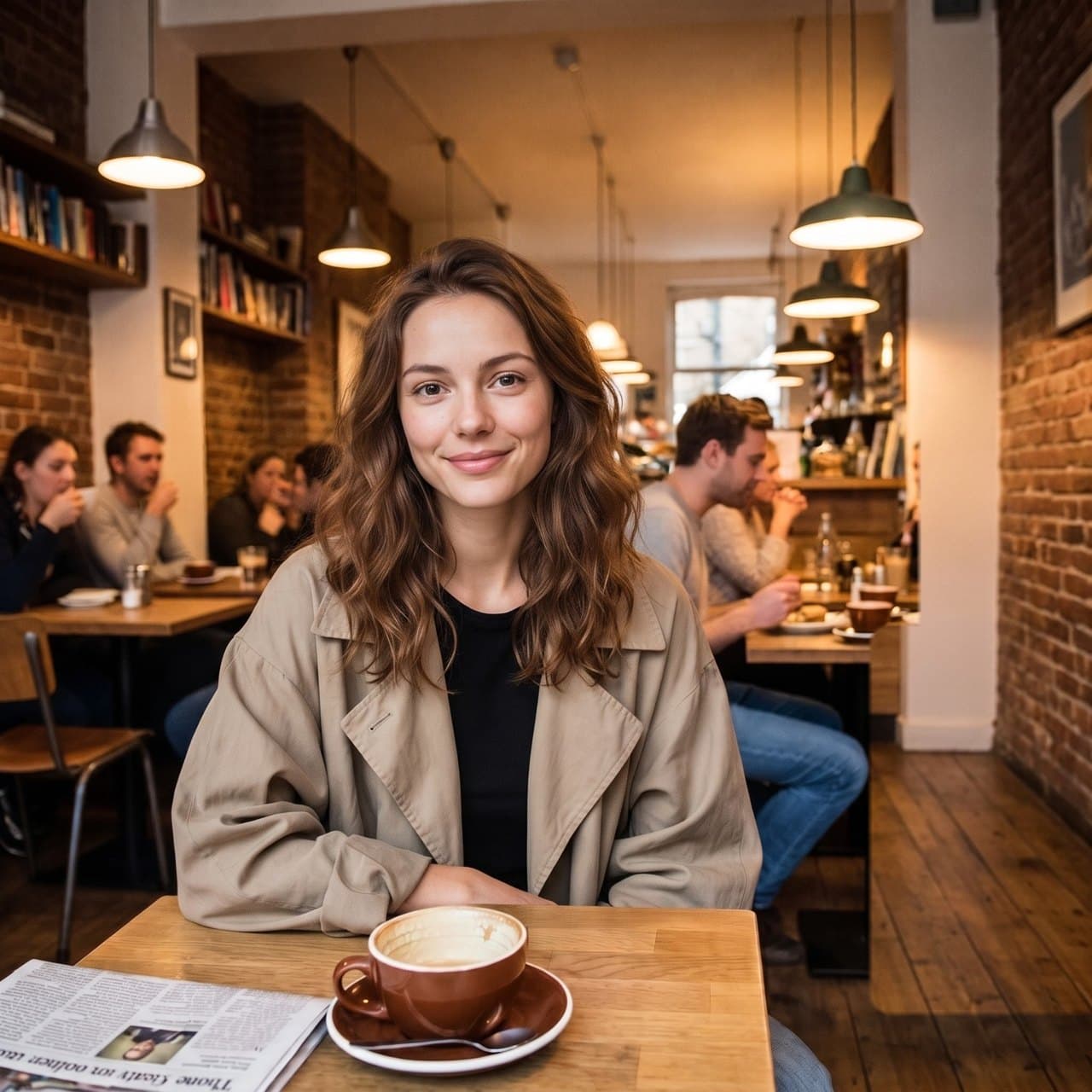
The unedited AI redraw result from the workspace above, at the original resolution. The wall and floor behind him were rebuilt and pasted back through the brush mask; the woman, the cup and every pixel outside the brushed area are unchanged.
Why people need AI redraw
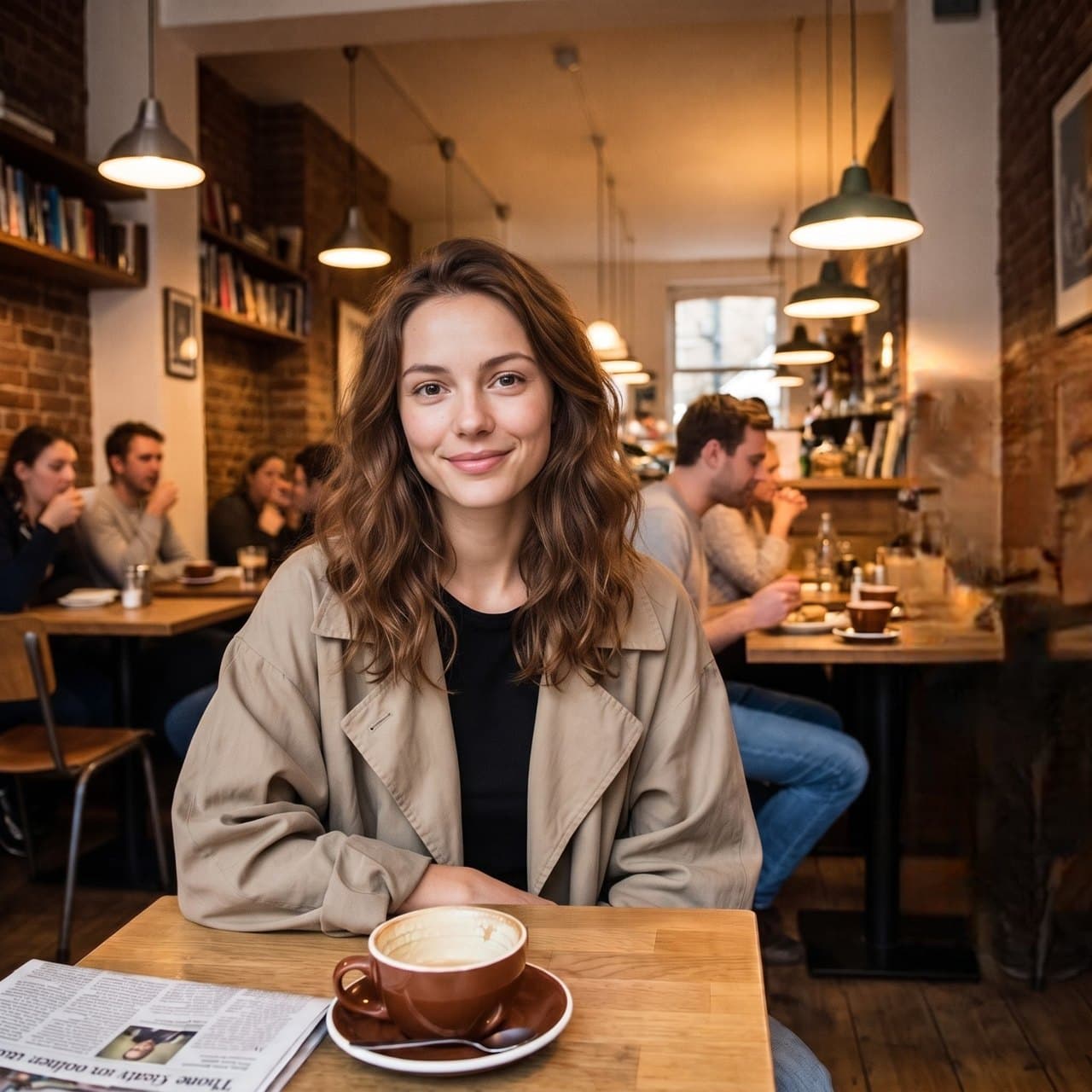
This is Quick erase on the same brushed area. The on-device model only sees a small, downscaled patch, so a whole person in a busy scene turns into a blurry smear. That is why AI redraw is the default on this page; Quick erase is better for small things such as a cup, a sign or a bag.
Two ways to remove, one promise
Only the area you brush is changed. Every pixel outside it is copied from your original.
Quick erase — free, on your device
An inpainting model runs in your browser with WebGPU. No account, no upload, no daily limit. It is quick and clean on small objects over plain textures such as walls, wood, sky, sand or grass, and it gets blurry on large areas with a lot of structure behind them.
AI redraw — for people and busy scenes
The photo and your brushed area are sent to an image model on our servers, which redraws what should be behind the subject. PixJelly then pastes back only the brushed area, so nothing outside it changes, and keeps your original resolution. 2 free a day without signing in; after that, 7 credits each with a Google sign-in.
Nothing else is touched
Generative editors redraw the whole picture, so faces, text and colors elsewhere can drift. Here the result is merged back through your brush mask with a soft edge, and the rest of the photo is byte-for-byte your original.
Brush, not prompts
You do not have to describe what to remove or write a prompt. Point at it with the brush; the instruction is filled in for you.
Remove more, step by step
After a result, choose Remove more to keep editing the new image — take out one thing at a time and check each step.
No watermark
Download the result as a PNG at your working image size, with no watermark and no export screen.
Continue your image workflow
When people need to leave the picture
Remove tourists from photos
- Clear passers-by from travel shots in front of landmarks.
- Brush each tourist and run AI redraw, or use Remove more to take them out one at a time.
- Keep the people you came with exactly as they were.
Remove strangers from the background
- Take out the person who walked into the frame behind you.
- Remove a photobomber without retaking the shot.
- Small, distant figures often work with free Quick erase.
Clean up group and event photos
- Remove someone who asked not to be in a shared photo.
- Tidy the edges of a team or wedding photo.
- Check faces next to the brushed area — they are never redrawn.
Listings and portfolios
- Remove people from a room or property photo.
- Clear staff out of a product or venue shot.
- Download a PNG at your working resolution with no watermark.
People removers compared
What you get for free when you need to remove a person from a photo.
| Tool | Free use | Sign-up required | Photo uploaded | Max free resolution | Watermark (free) |
|---|---|---|---|---|---|
| PixJelly | Quick erase unlimited; AI redraw 2 a day | No | Quick erase: no. AI redraw: yes | Up to 2048 px (long edge) | No |
| magicremover.org | 2 a day (+2 with Google sign-in) | No | Yes (results deleted after 24 hours) | About 1 MP | No |
| Photoroom | Counts toward 100 exports a month | Yes | Yes (online service) | 2000 × 2000 px (web app) | No |
| Canva Magic Eraser | Not in the free plan | Yes | Yes (online service) | Not applicable | Not applicable |
| Picsart | Free, no stated limit | Not stated | Yes (online service) | Not stated | Not stated |
| Google Photos Magic Eraser | Free, no stated limit (app on a supported device) | Not stated | Not stated | Not stated | Not stated |
Checked against each vendor’s official pricing, help and policy pages on October 23, 2026. Plans change often — check the vendor’s site before relying on a number. “Yes (online service)” means the vendor does not say so separately, but the tool processes photos on its servers.
Remove person from photo: common questions
Is it free to remove a person from a photo?
Yes. Quick erase is free and unlimited because it runs on your own device. AI redraw, which works better on people in busy scenes, is free 2 times a day without an account; after that it costs 7 credits per photo with a Google sign-in, and new accounts get 10 free credits.
Do I need to sign up?
No. Quick erase never needs an account, and you get 2 free AI redraws a day without signing in. You only need a Google sign-in to keep using AI redraw beyond that.
Is my photo uploaded?
Not with Quick erase — it runs entirely in your browser. AI redraw sends the photo and the brushed area to our servers and an image provider to rebuild the background.
Will the rest of my photo change?
No. Both methods merge the result back only inside the area you brushed, with a soft edge. Everything outside it — other faces, text, colors — is copied from your original.
Why does the result look blurry?
That usually means Quick erase was asked to fill a large area with a lot of detail behind it, such as a whole person in a crowded room. Switch to AI redraw, or brush a smaller area and use Remove more step by step.
What is the maximum resolution?
Up to 2048 pixels on the long edge. The result keeps the size of your working image and is not upscaled.