
Text to Image
Text to Image AI, made for your imagination
Describe a subject, a setting and the feeling you want. Generate a new image in a simple workspace, then download it or take it into your next edit.
From text to image in three steps
- 1
Describe the image
Start with a subject, then add the parts that matter: material, lighting, framing, mood. The prompt box takes up to 5,000 characters, so there is room to be specific, though a single line is enough to begin.
- 2
Choose the format
Pick PixJelly V2.0 or one of the external image models, then choose the shape of the frame. The ratio drives the composition the model builds, so it is worth settling before you generate rather than cropping your way there afterwards.
- 3
Generate and download
The request runs on the provider servers while the workspace follows the task. When the picture arrives, review it at full size and save it with the download button, or adjust the prompt and run it again.
Make space for your own direction
Use a short prompt to explore, or add details for a more specific visual brief. There is no required formula and no keyword list to memorize. A plain sentence about what you want to see is a legitimate starting point, and the room to write more is there for the days when the picture in your head is more particular than that.
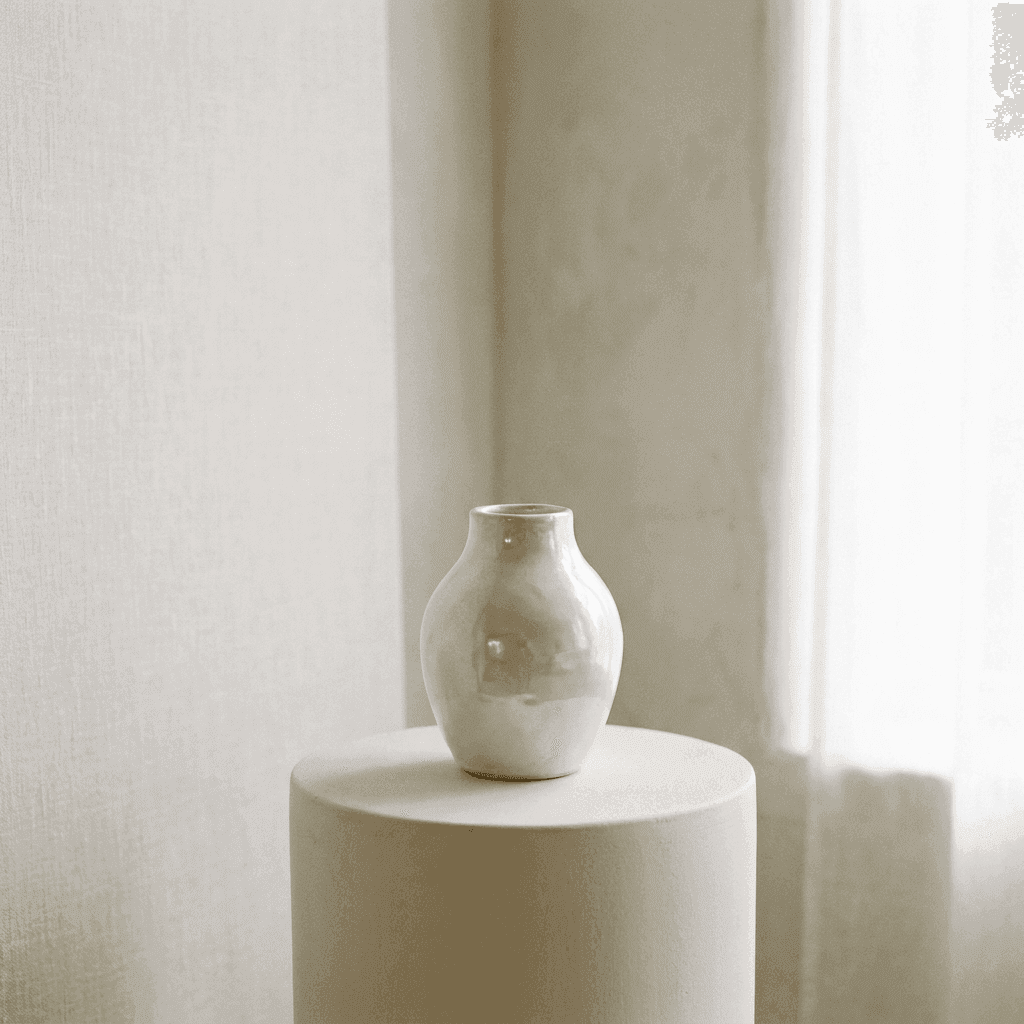
Find beauty in the details
Describe the material, light and composition you have in mind. Explore variations until the image feels right for your project. Changing one clause at a time, the light or the lens or the surface, teaches you far more about what a model responds to than rewriting the whole prompt at once.
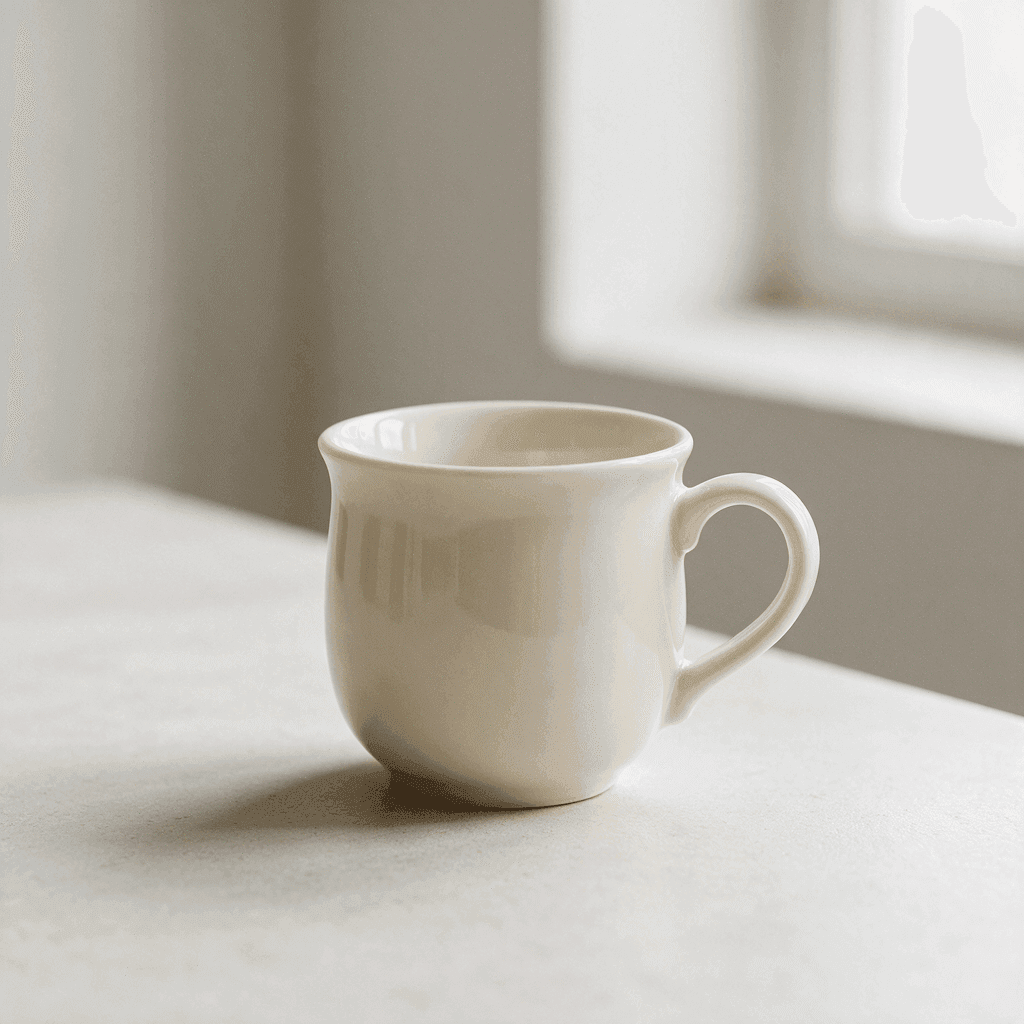
A focused text to image workspace
The controls you need to get started.
Flexible formats
Square, portrait and landscape ratios: 1:1, 3:4, 4:3, 16:9 and 9:16. Choose one before generating so the composition is built for wherever the picture will end up.
Official and external models
Use our curated workflow, or choose Nano Banana Pro, Nano Banana 2, GPT Image 2 or Seedream 5 Pro directly. Each one reads the same prompt in its own way.
Downloadable results
Save the generated image directly from the result panel. There is no watermark step and no separate export screen between you and the file.
Room for a long prompt
The prompt box accepts up to 5,000 characters. That covers a subject, a setting, a lighting note and a list of things to avoid, without trimming the brief to fit.
Nothing to install
Generation runs in the browser you are already using. No plugin, no desktop app, and no account before your first image.
A task that survives a reload
A generation in progress is remembered by the workspace, so refreshing the page or switching away does not cost you the image you were waiting for.
The rest of the image toolkit
Making a picture is one job. These are the others.
Image to Image
Start from a photo you already have and describe a new style, setting or mood for it.
Annotate & Edit
Keep an image and change one part of it. Draw an arrow at the spot and write the instruction there.
Remove Background
Separate a subject as a transparent PNG. That tool runs on your own device rather than on a server.
Where text to image helps most
Art direction
- Explore a mood before committing a photographer, a set or a budget to it.
- Try three compositions of the same subject and put them next to each other in a deck.
- Turn a written reference into something a room full of people can actually look at and argue about.
Social and editorial imagery
- Generate a portrait-shaped picture for a story format and a wide one for a header from the same idea.
- Illustrate an article when the photograph you need does not exist and the stock libraries do not have it.
- Build a visual concept for a campaign before any of it has been produced.
Still life and product concepts
- Describe objects, surfaces and materials and see how they sit together in one frame.
- Experiment with lighting, hard and directional or soft and overcast, without moving a single lamp.
- Sketch a packaging or display idea quickly enough that being wrong about it costs nothing.
Placeholders and mockups
- Fill a layout with an image at the ratio you designed for instead of another grey box.
- Give a prototype the tone of the finished thing so feedback lands on the design, not the missing art.
- Produce a background or a texture to sit behind type in a slide, a banner or a cover.
What is a text to image generator?
An AI image generator earns its place when the picture you need does not exist yet: an illustration for an article, a concept to show someone, a placeholder that fits your layout. Here is what happens to what you type.
Your prompt
The workspace accepts up to 5,000 characters. A subject on its own is enough to begin, and adding material, lighting, framing and mood narrows what comes back. There is no keyword syntax to learn and no magic words to collect; ordinary sentences work.
Your model
PixJelly V2.0 is our curated workflow, currently running on Nano Banana Pro. Nano Banana 2, GPT Image 2 and Seedream 5 Pro are available too, and each one reads the same prompt in its own way. Running one brief through two of them is a cheap way to learn which suits your kind of picture.
Your frame
Pick 1:1, 3:4, 4:3, 16:9 or 9:16 before generating. The ratio shapes the composition, so it is worth matching to wherever the image will end up. Switching models resets the choice back to square, which makes the format the last thing to set.
Your result
Generation happens on the provider servers, not in your browser. The finished image appears in the result panel with a download button, and starting another generation replaces it, so save anything you want to keep before the next run.
Create first, refine next
Generate a starting image from text, then decide what to do with it. Text to image is very good at bringing a whole frame into existence and much less good at changing one corner of a frame that is already nearly right. Those are different jobs, and the workspace keeps a separate tool for the second one.
So the useful habit is to treat the first result as a draft. Download it, look at it away from the prompt box, and work out whether the next move is another prompt or a targeted change to the picture you already have.
Every run produces a new image. Two attempts at the same prompt will not match, and a small change in wording can move the whole composition. If a result is close to what you wanted, save it before you start experimenting again.
Text to image questions
What is PixJelly V2.0?
PixJelly V2.0 is our curated image workflow, currently powered by Nano Banana Pro. It combines a consistent visual brief with the underlying model; it is not a separately trained foundation model.
Do I need a reference image?
No. This tool creates an image from your text prompt alone. An empty workspace and one sentence is a valid place to start.
How long does generation take?
It varies with the model and provider load. The result panel shows progress. If the wait times out, check the existing task again without starting another generation.
Is image generation on-device?
No. Your prompt is sent to the image provider and the picture is generated on its servers rather than in your browser.
How long can a prompt be?
Up to 5,000 characters. Most useful prompts are far shorter than that; the limit is there so a detailed brief never has to be cut down to fit the box.
Which aspect ratios are available?
Five shapes: one square, two portrait and two landscape. The default is square, and changing the model resets the choice, so set the ratio after you have settled on a model.
Can I generate the same image twice?
Not exactly. Each run produces a new picture, and the same prompt can return something different. Download whatever you want to keep before you edit the prompt.
Do I need an account?
No. You can write a prompt and generate an image without signing in. Signing in stays optional.