
Image to Image
Reference image
Image to Image AI: a new direction for your photo
Start with a reference photo and describe what comes next. Change the style, setting or mood with PixJelly Image to Image.
From reference to a fresh interpretation
- 1
Add a reference
Upload a photo, drop it into the workspace or paste from your clipboard. PNG, JPEG and WebP files up to 25 MB are accepted, and the workspace prepares a working copy at up to 1,800 pixels on the long edge before anything is sent.
- 2
Describe your direction
Tell us what to change and what to keep. Choose PixJelly V2.0 or one of the external image models, then set the shape of the output to match the frame you actually need.
- 3
Create and save
The request runs on the provider servers while the workspace follows the task. Review the new image next to your reference, then download it for your next project or write a different direction and run it again.
Your composition, a different mood
Use a photo as the starting point for a new visual direction. Describe a different material, lighting or artistic style while keeping the elements that matter to you. Naming the parts worth keeping matters as much as naming the change, because every pixel in the frame is drawn again either way.
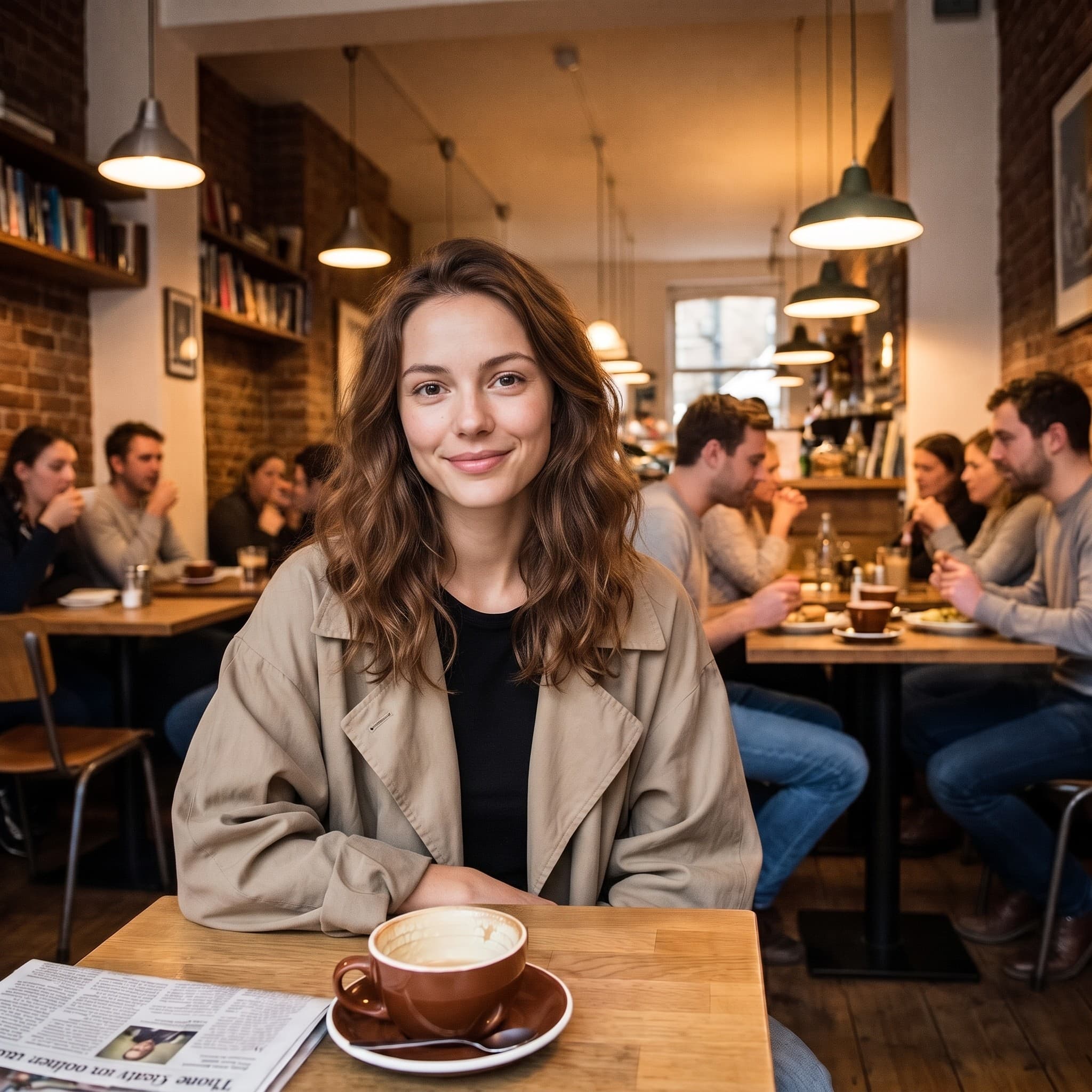
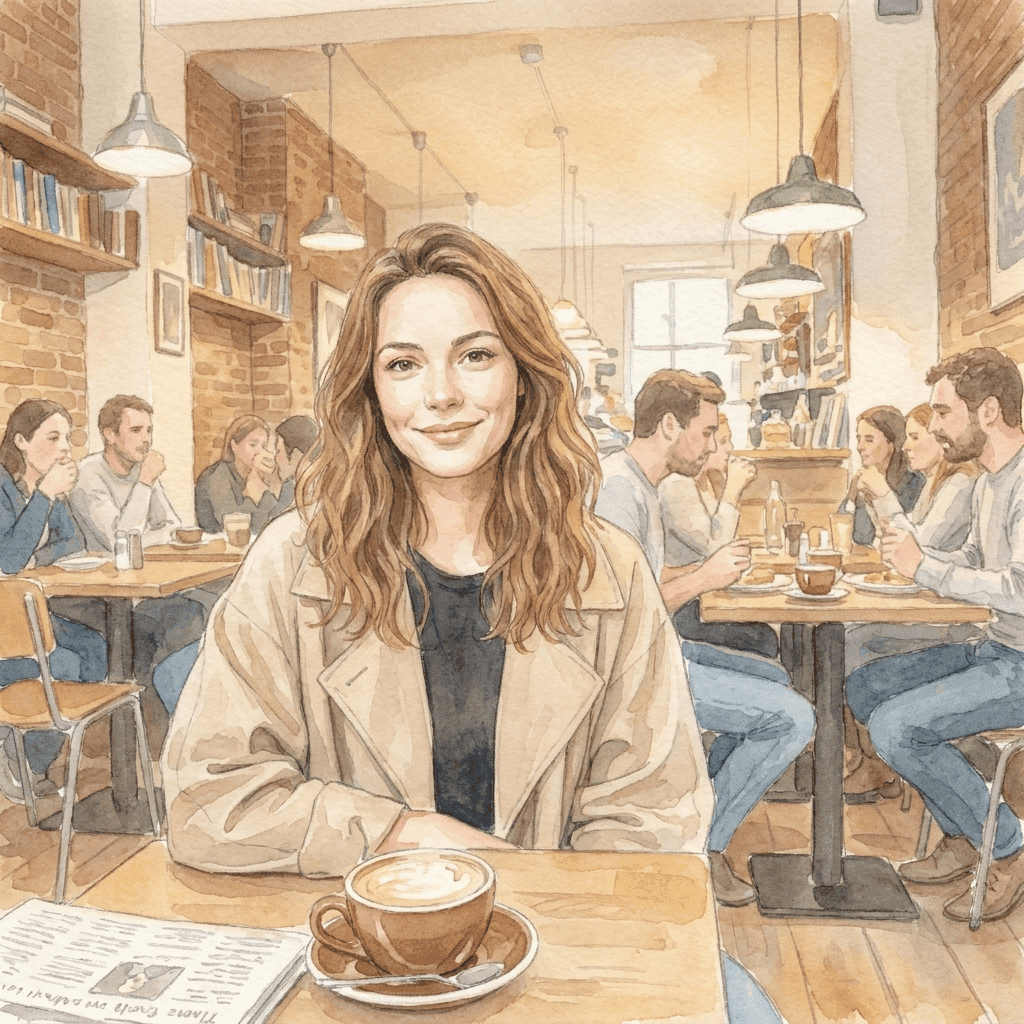
From a photo to a softer world
This watercolor illustration was generated from the reference photo with a short style instruction. Bring a visual direction of your own, and explore what your image can become. The pose, the framing and the fall of light in the original are what make the illustration recognizable; the instruction only had to supply the medium.
A focused image to image workspace
Bring the reference. Choose the direction.
One reference, many ideas
Explore a new setting, medium or visual style from a single existing image. Your file is never overwritten, so you can run the same reference again with a different direction whenever the first answer is not the one.
Choose your model
Use PixJelly V2.0 or one of the available external image models. Each reads the same reference and the same instruction differently, so a direction that falls flat on one is often worth trying on another.
Ready to download
Save your result directly from the workspace, with no watermark step and no separate export screen in between.
Formats that fit the frame
Set the output to 1:1, 3:4, 4:3, 16:9 or 9:16. The result is generated at the ratio you picked rather than cropped down to it afterwards.
Room to explain yourself
The prompt box accepts up to 5,000 characters, which is enough to describe the change, the things to preserve and the mood you are after, all in one pass.
Nothing to install
Image to image AI runs in the browser you already have. No plugin, no desktop application, and no account before your first attempt.
What else is in the workspace
Transforming a photo is one job. These are the others.
Text to Image
No reference at hand? Write a prompt and generate an image from words alone.
Annotate & Edit
Keep the photo as it is and change one part of it. Draw an arrow at the spot, write the instruction there.
Remove Background
Lift the subject out as a transparent PNG. That tool runs on your own device rather than on a server.
Where image to image AI fits
Creative direction
- Take a photograph you already like and see it as a watercolor, an ink drawing or a painted illustration.
- Try a different lighting treatment across the whole frame without going back to the shoot.
- Move a set of unrelated references into one visual language so a deck reads as a single idea.
Product imagery
- Describe a new backdrop for a product shot when the original setting no longer matches the campaign.
- Explore a different mood, warmer or colder or more editorial, before booking the photography that will make it real.
- Show someone what a treatment would look like instead of describing it in a paragraph and hoping it lands.
Style exploration
- Run the same reference through two models and compare which one understood the direction you wrote.
- Change one clause at a time and watch what moves. It is the fastest way to learn what a model actually listens to.
- Keep the composition you already spent time on and treat everything else in the frame as a variable.
Personal photos
- Turn a portrait into an illustration for a card, a profile picture or something worth printing.
- Reimagine a holiday photo in a season it was not taken in.
- Give an old snapshot a treatment that suits the wall you want to hang it on.
What is image to image AI?
A picture and a written direction go in together. It suits anyone holding a photo that is close to right, but wrong in style, setting or mood. Four things decide what comes back.
Your reference
One PNG, JPEG or WebP up to 25 MB. The workspace prepares a working copy at up to 1,800 pixels on the long edge and sends that copy to the model, so a much larger file buys you nothing here. What the reference does carry is everything a paragraph struggles to describe: the pose, the spacing, the way the light falls.
Your direction
Write what should change and what should stay. Naming the things worth keeping (a pose, a layout, a product shape) usually matters more than describing what is already visible in the frame. The prompt box holds up to 5,000 characters, so there is no need to compress the brief.
Your model
PixJelly V2.0 is our curated workflow, currently running on Nano Banana Pro. Nano Banana 2, GPT Image 2 and Seedream 5 Pro are available too, and each one reads the same reference differently. Trying one brief on two models costs little and tells you a lot.
Your result
The output is a newly generated image at the ratio you picked, not an edit applied on top of your file. Your reference stays untouched, and the result panel holds one image at a time, so download anything you want to keep before the next run.
A new image, not a retouched one
Image to image AI regenerates the whole frame. Everything in the result was drawn by the model, including the parts that look untouched, so lettering, hands, logos and small background objects can come back changed. Compare the result with your reference before you use it anywhere.
That trade decides which tool fits. An image to image AI transformation is the right move when style, setting and mood should shift together. When a single region is wrong and the rest of the photograph is already correct, pointing at that region and describing the change preserves far more of what you started with. When you only need the subject lifted away from its background, an on-device cutout leaves the original pixels alone entirely.
Starting from a picture rather than a sentence is worth it for exactly the reason it is risky. The reference hands the model information no paragraph can carry, and it also hands over the parts you were not thinking about. So choose a reference that is genuinely close to the composition you want, and read the result for drift rather than for style alone.
Image to image AI questions
Do I need a reference image?
Yes. This tool starts from one uploaded image. If you have nothing to start from, generate a picture from a written prompt first and bring that back here as the reference.
Will every original detail stay the same?
No. The whole frame is generated again, so text, hands, logos and small background objects can come back changed. Review the result before using it, and consider a targeted local edit instead when only one region is wrong.
Is this processed on my device?
No. Your reference and your prompt are sent to the selected image provider, and the new image is generated on its servers.
What size should my reference be?
Any PNG, JPEG or WebP up to 25 MB. The workspace generates from a copy at up to 1,800 pixels on the long edge, so a very large original does not add detail to the result.
How specific should the instruction be?
Specific about the change, and specific about what should survive it. Naming a pose, a layout or a product shape you want kept is usually more useful than describing what is already plainly visible in the photograph.
Which aspect ratio will the result use?
The one you choose before generating: 1:1, 3:4, 4:3, 16:9 or 9:16. The output is generated at that shape rather than cropped to it, so pick the ratio that matches where the image is going.
Is my original file modified?
No. The result is a separate, newly generated image. Your reference stays exactly as you added it, and the result panel holds one image at a time, so download anything worth keeping before you run again.
Do I need an account?
No. You can add a reference, write a direction and generate without signing in. Signing in stays optional.